How to Make Useful Presentations Easily with AI Tools: A Practical Guide
Turn notes, reports or a topic into a clear presentation with AI. Follow a simple workflow, use a copy-ready prompt, choose a suitable tool and check the final slides before presenting.
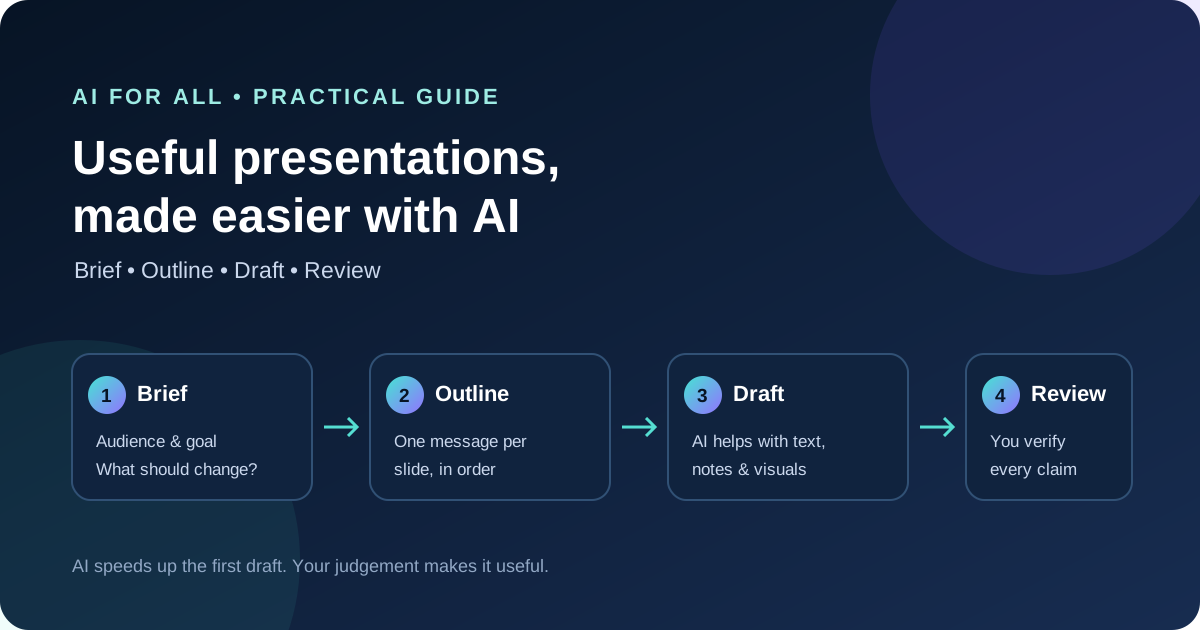
A useful presentation helps an audience understand a message, make a decision or take a next step. AI can quickly turn a topic, report or rough notes into an outline and slide draft. You still need to supply the purpose, confirm the facts and decide what belongs on each slide.
A simple workflow: brief, outline, draft, review
- Write a short brief. State the audience, purpose, time available, tone and what the audience should know or do afterwards.
- Give AI trusted source material. Paste your notes or provide a document you are allowed to use. Tell it to rely only on that material and flag missing information.
- Ask for a slide outline first. Review the order and the main point of every slide before asking for a designed deck. This catches a weak story before you spend time formatting.
- Generate a first draft. Request concise slide text, one main idea per slide, relevant visuals and brief speaker notes. Ask for a chart only when the source data supports it.
- Edit for the audience. Replace generic examples with familiar ones, remove repetition and explain specialist terms. Keep detail in speaker notes or an appendix when it does not belong on the slide.
- Verify and rehearse. Check figures, dates, quotations, sources, labels and image rights. Read the slides aloud and confirm the deck fits the time available.
Copy-ready prompt for a first draft
Use this prompt in a chat assistant or a presentation tool. Fill in the brackets and add your source material.
Create a [number]-slide presentation for [audience] about [topic].
Purpose: Help the audience [understand / decide / do something].
Speaking time: [minutes]. Tone: [plain / formal / persuasive / instructional].

Use only the information in the source material below. Do not invent facts,
statistics, quotations, examples or sources. If information is missing,
mark it as [NEEDS INPUT].

First give me a slide-by-slide outline with one key message per slide.
After I approve the outline, draft the slides. Keep wording concise, suggest
one relevant visual or chart per slide, and add short speaker notes.
Use a consistent, readable visual style and finish with a clear takeaway.

Source material:
[Paste notes, report extracts or verified facts here]
If the tool generates the slides immediately, ask it to show the outline separately and revise the order before polishing the design.
Choose a tool that fits your workflow
| Tool | Useful when | What to check |
|---|---|---|
| Gamma | You want a quick, AI-generated draft from a prompt or existing content. | Review the generated structure and layout; confirm export and editing needs for your workflow. |
| Canva AI presentations | You want to start from a prompt and refine the design in Canva’s visual editor. | Check the generated text and images; available AI features may depend on your account or team settings. |
| Microsoft Copilot in PowerPoint | You already work in PowerPoint or want a draft based on a Word document. | Review the draft and check whether Copilot is included in your Microsoft plan. |
| Gemini in Google Slides | You create and collaborate on decks in Google Slides. | Full-presentation generation is documented for desktop in English with eligible plans or Workspace Experiments access. Check current language, device and account availability. |
These tools can speed up the first draft, but none removes the need to check the content. For formal, financial, legal, medical or compliance presentations, trace every material claim back to its source before sharing.
What AI does well—and where it can fall short
| Benefits | Limitations |
|---|---|
| Turns a blank page into an outline and a usable first draft. | May produce a generic story that misses the audience’s real question. |
| Summarises long notes and proposes headings, examples and speaker notes. | Can omit context or introduce incorrect details, especially when source material is unclear. |
| Suggests layouts, images and ways to explain complex ideas visually. | Visuals may be irrelevant, misleading, inaccessible or subject to usage restrictions. |
| Helps revise tone, simplify wording and prepare likely audience questions. | Overuse can make the deck sound impersonal or create slides full of polished but unsupported claims. |
| Can save time on repetitive formatting and early-stage drafting. | Requires review, editing and sometimes reformatting; it does not guarantee a ready-to-present deck. |
Quick readability and quality check
- Each slide makes one main point; the title states the point rather than only the topic.
- Text is concise and readable from the back of the room. Avoid shrinking text to fit too much content.
- Use a consistent font, colour palette, spacing and heading style. Keep strong contrast and add alt text or spoken descriptions for important visuals.
- Use charts only when the underlying data is accurate. Label units, time periods and sources clearly.
- Confirm every number, name, date, quote and external reference. Replace unsupported claims with verified facts or remove them.
- Do not upload confidential, personal or client information unless your organisation permits it and the tool’s data terms are appropriate.
- Make sure you can explain every slide in your own words, and that the presentation fits the allotted time.
Official tool guides
- Gamma: Create a presentation from a prompt or source content
- Canva: Create a presentation with Canva AI
- Microsoft: Prepare a presentation with Copilot
- Google Slides: Generate presentations with Gemini
Remember: Let AI speed up the outline and first draft. You remain responsible for the message, evidence and final slides.