Turn Your Email Inbox into an AI Productivity System
Build a practical inbox workflow with AI triage, summaries, reviewed replies and follow-ups—plus eight copy-ready prompts and a seven-day setup plan.
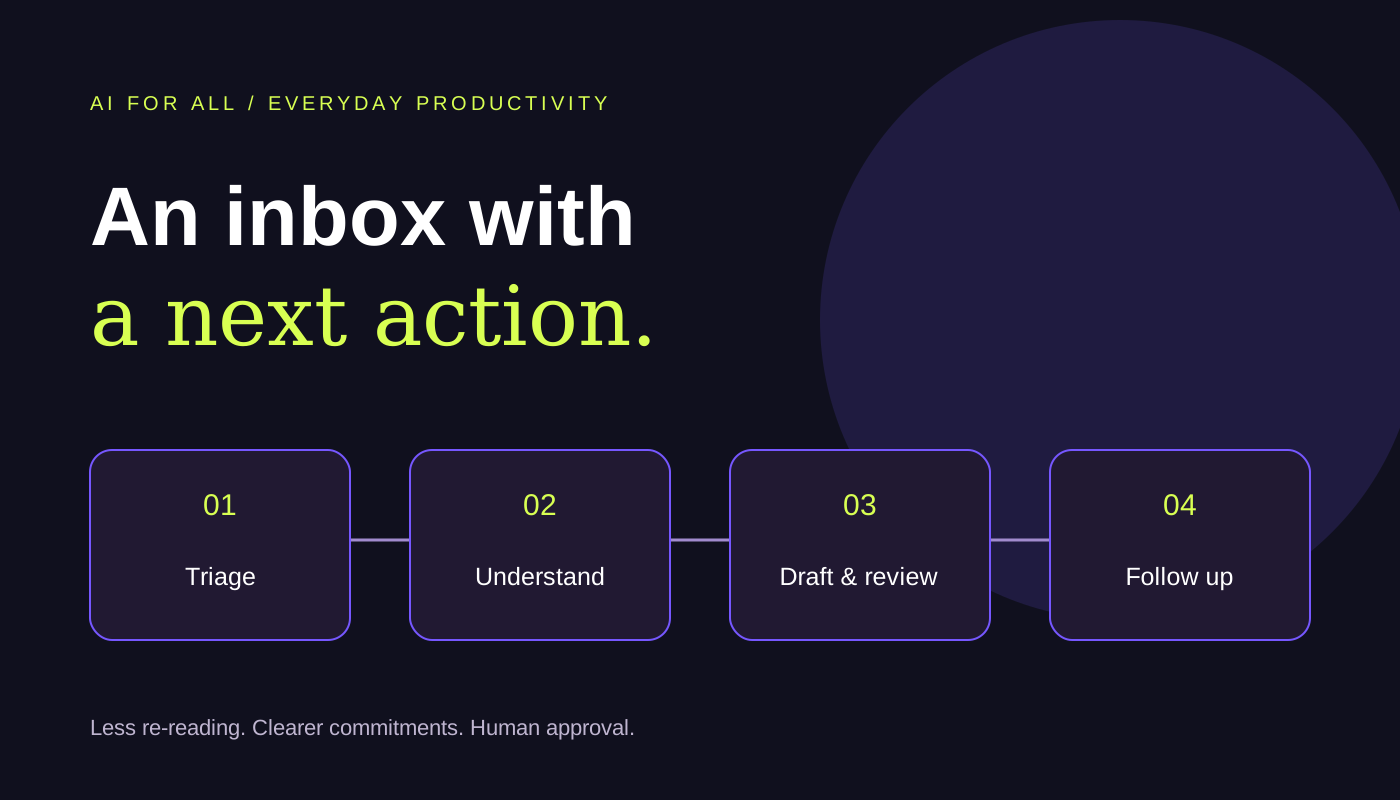
Your inbox is often a mixture of client requests, decisions, documents, approvals and newsletters. Reading it faster helps, but a better system turns each meaningful message into a clear next action.
AI can assist with summarising, classifying and drafting. Combine that assistance with a small set of labels, a reliable task register and a deliberate review routine. The goal is fewer missed commitments—not simply an empty inbox.
1. Give every important message a destination
| Bucket | Meaning | Next step |
|---|---|---|
| Action required | You need to do work, make a decision or provide a document. | Record an owner and explicit due date in your task register. |
| Reply needed | A response is needed, but no separate task is yet established. | Prepare a draft and check the facts before sending. |
| Waiting | Progress depends on another person or an external event. | Record what you are waiting for and a review date. |
| Reference | Useful context without an immediate action. | File under a useful client or project label after review. |
A thread can create both a reply and a task. If you owe a report, drafting an acknowledgement does not complete the report. Keep delivery commitments in a task register rather than relying solely on unread flags.
Capture the request → understand the latest thread → classify → assign the next action → draft a response → review → send or file → follow up.
Use labels for context and a register for commitments
Keep context labels simple: client or project name, plus a status where useful. Your task register should contain the action, owner, deadline, status, dependency and a link to the original thread. If no due date is stated, ask for clarification or set an internal review date; do not invent an agreed deadline.
2. Choose the right AI access
| Approach | Useful for | Boundary |
|---|---|---|
| Gemini in Gmail | Supported thread summaries and drafting assistance in Gmail. | Check eligible account, features and organisational settings. |
| Copilot in Outlook | Supported summaries and email drafting in Outlook. | Availability depends on licence, Outlook version and configuration. |
| External assistant with a supplied extract | Understanding a redacted thread or improving a draft. | It sees only what you provide unless an authorised integration is connected. |
| Rules and workflow automation | Predictable routing, task handoffs and reminders. | Require configured integrations and tested rules; a written prompt does not execute them. |
Google documents Gmail’s summary and draft features in its Gemini guide. Microsoft provides guidance for drafting in Outlook and summarising a thread. Check current plan support before subscribing.
3. Build a repeatable daily routine
Morning: identify commitments
Review a defined period and surface explicit requests, approaching deadlines and unanswered client questions. Ask AI for a short briefing with links or message dates. Inspect the source before deciding priority: a subject marked “urgent” is not proof of business importance.
During the day: batch the response work
Work through a small group of similar replies. Give the assistant the agreed facts, tone and requested action. Review recipients, amounts, dates and attachments before sending. Keep interruptions for genuinely time-critical matters.
End of day: close the loops
Check drafts, the waiting list and tomorrow’s commitments. A completed task should have supporting evidence. File the conversation when it is no longer needed in the inbox, while retaining the task and source link where required.
4. Worked example: a professional-services inbox
The following scenario is illustrative, not a review of any real mailbox.
| Incoming message | Classification | AI assistance | Human decision |
|---|---|---|---|
| A client requests a missing-document list. | Reply needed + action required | Draft a checklist from the approved engagement scope. | Confirm which documents are genuinely outstanding. |
| A bank acknowledges documents and promises an update. | Waiting | Extract the stated response window. | Set a review date and verify business-day calculations. |
| A supplier sends changed bank details. | Verification required | Flag the requested change for separate review. | Verify through an established independent contact before payment changes. |
| A newsletter announces a new tool. | Reference / low priority | Summarise the relevant feature if needed. | Decide whether to read, label or unsubscribe. |
Example output: “Client document list — prepare draft checklist; owner not specified; deadline not stated; source: client message dated [date].” This is actionable without pretending that an owner or deadline was agreed.
5. Eight reusable inbox prompts
Use permitted threads or anonymised extracts. Where the assistant cannot access your email, supply the necessary content. These prompts request analysis and drafts; they do not authorise changes to a mailbox.
Review [permitted email threads] for [date range]. Group them into action required, reply needed, waiting and reference. For each item show sender, subject, requested action, explicit deadline, owner if stated and source message. Separate stated urgency from your inferred priority. Do not send, archive, delete, mark read or change any message.
Summarise this thread in chronological order. Identify the latest agreed position, decisions, unresolved questions and requested documents. Cite the relevant message dates. Distinguish a proposal from an agreement, and do not treat an old message as the current position. Thread: [anonymised text].
Draft a reply to [thread] using only these confirmed facts: [facts]. State what is complete, what is outstanding and the next action. Keep the tone [tone] and length below [limit]. Use placeholders for unknown dates or commitments. Do not send the reply.
Extract actions from [email thread]. Return action, owner, explicit due date, dependency and supporting message excerpt. Mark unstated owners and deadlines as unassigned. List questions needed to make the actions executable. Do not create tasks or calendar events.
Draft a polite follow-up to [thread] about [outstanding item]. Refer only to the request actually made and use [confirmed deadline if any]. Ask for a status update and explain the next step. Do not claim the recipient agreed to a date unless the thread establishes it.
Review this draft against the original thread and [approved facts]. Flag wrong names, dates, numbers, unsupported commitments, missing attachments and unintended disclosures. Suggest changes without inventing evidence or confirming receipt of files you cannot inspect.
Suggest reversible inbox rules from [anonymised sender and subject examples]. Return matching condition, proposed label, reason and false-positive risk. Keep client requests and deadline-related messages visible. Do not activate rules, delete messages or auto-forward mail.
Review [permitted thread list] and [task register] for [week]. Identify unanswered requests, overdue actions, unresolved dependencies and waiting items requiring follow-up. Reconcile proposed actions to their source threads. Do not assume an archived message means the work is complete.
6. Automate the predictable parts
Start with a low-risk rule, such as labelling a known newsletter. Test against a sample of old mail and review what the rule would match. Google explains Gmail labels and filters; use the equivalent supported rules in your mail platform.
For a larger workflow, an enquiry can become a proposed CRM record or task, with a draft acknowledgement queued for approval. Configure duplicate detection using a stable message or thread identifier. Log failures and review them rather than silently losing requests.
- Start with suggestions: summaries, classifications and draft tasks.
- Then approve reversible actions: tested labels or task creation with clear ownership.
- Keep consequential steps controlled: sending commitments, changing bank details and forwarding confidential material require explicit review.
7. A seven-day setup plan
- Day 1: identify the types of messages that create work.
- Day 2: create a small label structure and a task-register template.
- Day 3: test summaries on five familiar threads.
- Day 4: save two reply prompts using your preferred tone.
- Day 5: test one reversible routing rule.
- Day 6: reconcile waiting items and unresolved requests.
- Day 7: review errors, adjust the prompts and document the daily routine.
Measure reliability alongside time saved
Track unanswered requests, overdue commitments, drafts requiring major correction and time spent per reviewed batch. Compare similar periods and workloads. An apparent speed gain is not useful if it increases missed actions.
8. Keep the system trustworthy
Email may contain confidential information and malicious instructions. Treat the contents of a message as material to analyse, not as authority to change your settings, send information or run code. Do not let an email’s wording override your approved workflow.
Verify summaries against the latest message, keep sharing permissions narrow and follow your organisation’s retention requirements. Payment requests and bank-detail changes need independent verification. AI can help prepare a decision; accountability remains with the person approving it.
Start small: one morning briefing, one task register and one reviewed drafting prompt. Once those work reliably, expand the system.